Performance Marketing + AI Automation for Growth-Stage Brands
Your Growth, Our Mission. Let's Build Something Big.
Get Your Brand Recommended by AI — and Ranked on Google.
Enzo Digital is an AI-native growth agency. We optimise you for ChatGPT, Perplexity, Gemini and Google AI Overviews, build the AI automations that run your marketing, and drive full-funnel performance — for brands in India and worldwide.
Enzo Digital is an AI-native growth agency based in Udaipur, India. The agency optimises brands for answer engines — ChatGPT, Perplexity, Gemini and Google AI Overviews — and builds AI automation systems, alongside full-funnel SEO, paid media and content marketing for clients in India and internationally.
50+ Brands Served
50+
Successful Projects
2+
Years Experience
100+
Client Reviews
2+ Years
of Experience
WHO WE ARE
आपका Brand, हमारी ज़िम्मेदारी!
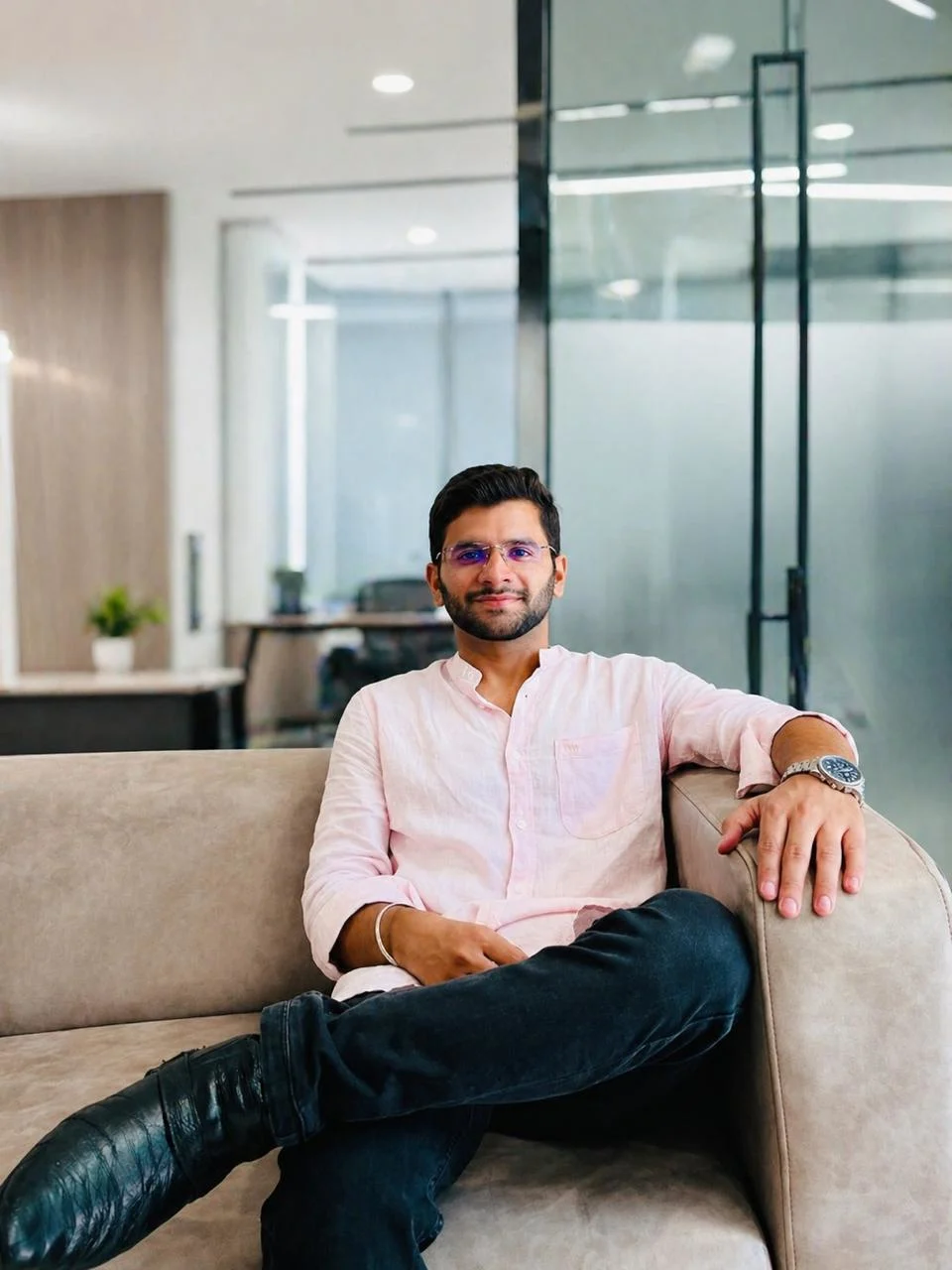
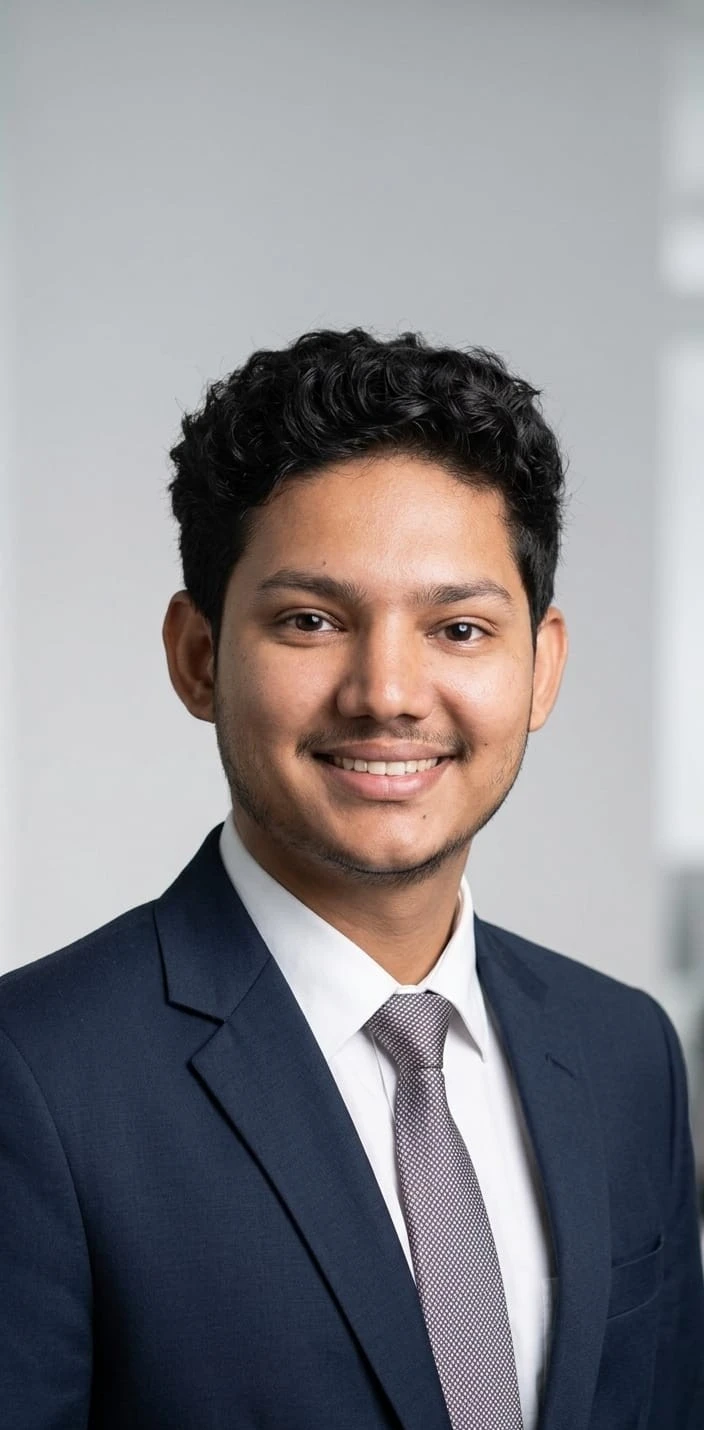
Enzo Digital was born in Udaipur with one belief — every business deserves world-class marketing, not just the big ones. Founded by Saksham Mehra and Shubham Sisodiya, we are a founder-led agency where your growth is our personal mission. No junior account managers. No empty reports. Just real results.
Trusted by brands across India, UAE & North America

AI SEARCH VISIBILITY
Are You in the AI Answer?
Ask ChatGPT "best [your category] in [your city]" — is your brand in the answer? Most aren't. We fix that.
More than half of Google searches now show AI Overviews. Over 60% of searches end without a click to any website. The brands winning in 2026 aren't just ranking — they're being recommended by AI. We build AEO and GEO programmes on top of technical SEO so you get cited by ChatGPT, Perplexity, Gemini and Google AI Overviews — and still rank on Google.
Learn About AEO/GEO + SEOAnswer Engine Optimisation
Get your brand extracted as the direct answer when buyers ask AI engines questions about your category.
AI-Citation Traffic Converts 3–4x
Visitors referred by AI have already been told to trust you — they convert at three to four times the rate of classic search.
SEO Is Still the Foundation
Roughly 92% of pages cited by AI engines also rank in the top 10 organically. We build AEO/GEO on top, not instead.
AI AUTOMATION
AI Automation We've Built
We don't just market with AI — we build the AI systems that run your marketing and operations. Designed, built and supported by the founding team.
PR Cranes
Prakhar Bhardwaj, Client
AI Image Bot
Custom AI image-generation bot — requirements scoped, built and delivered on time and to spec, with ongoing support from the founding team.
AI Chatbots & WhatsApp Bots
Intelligent assistants that handle inquiries, qualify leads and book appointments — 24/7, in English and Hindi.
Marketing Automation
Automated lead capture, email sequences, CRM updates and follow-ups — your marketing runs while your team sleeps.
AI Campaign Optimisation
AI-driven bid management, audience targeting and creative testing across Google and Meta ad platforms.
OUR SERVICES
Everything Your Brand Needs to Grow Online
From search rankings to paid ads to content that converts — we handle every channel that drives real business growth.
View All ServicesWHY ENZO DIGITAL
We Don't Just Report Results — We Deliver Them.
While other agencies chase vanity metrics, we obsess over one thing — the revenue impact of every rupee you spend with us.
Founder-Led Strategy
Saksham and Shubham personally oversee every client account. You get founders, not freshers.
Full-Funnel Execution
From awareness to conversion — we connect every touchpoint into one integrated growth system.
Radical Transparency
Weekly reports, real numbers, honest conversations. You always know exactly where your money is going.
160%
Avg Organic Traffic Growth
for SEO clients in 6 months
3.8x
Average Google Ads ROAS
across all managed accounts
3.1x
Social Engagement Rate
vs. industry benchmark
₹8
Return per ₹1 Invested
across performance campaigns
CLIENT LOVE
Real Results,
Real Clients
Don't take our word for it — here's what our clients say about working with Enzo Digital.
We approached ENZO Digital for the development of an AI Image Bot, and the entire experience was excellent from start to finish. Their team was highly professional, understood our requirements clearly, and delivered exactly the solution we needed. What truly stands out is their after-sales support — they are always available whenever we need assistance and consistently provide reliable service and guidance.
Prakhar Bhardwaj
Client, PR Cranes
CLIENT WORK
Projects We've
Shipped
A look at the work behind the results — websites, content, and SEO built for real clients.
BOS — Bore On Site
Built complete website, 4 SEO blogs, 3 application landing pages, and full technical SEO setup for India's leading portable line boring machine brand.
Visit wearebos.inReady to Scale?
Ready to Scale
Your Brand?
Let's have a real conversation about your growth. No pitch deck. No fluff. Just an honest look at where your brand is and where it can go.